Feature
Add items to your moving inventory with just the camera
Open the box, photograph what goes in and save. From the second item on, it's two taps — shoot and save — and the camera stays open for the next one.
How it works
Open the box
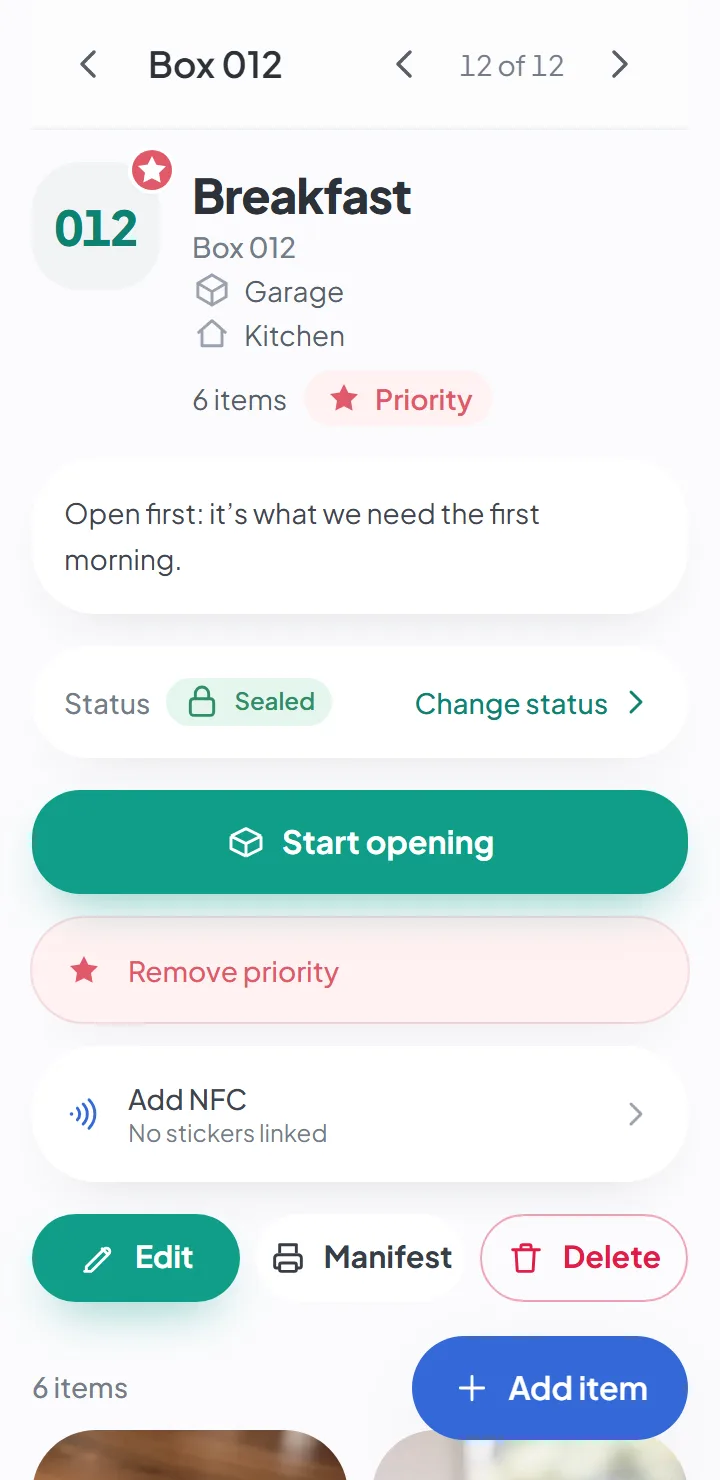
On the box you're filling, tap «Add item» and open the camera.
Take the photo
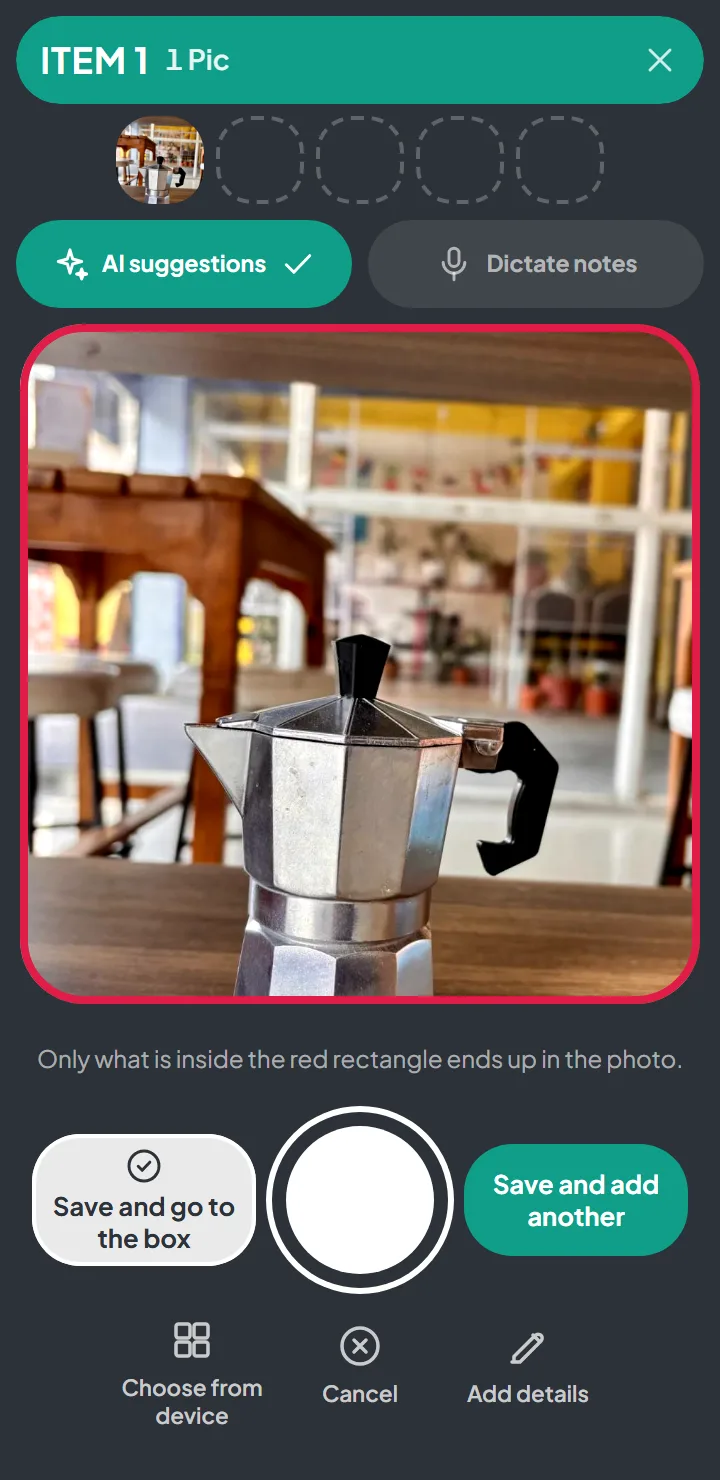
The viewfinder is square, and what you see is what you get. You can take up to five photos of the same item, one after another.
Save and move on to the next
«Save and add another» saves the item and leaves the camera open for the next one.
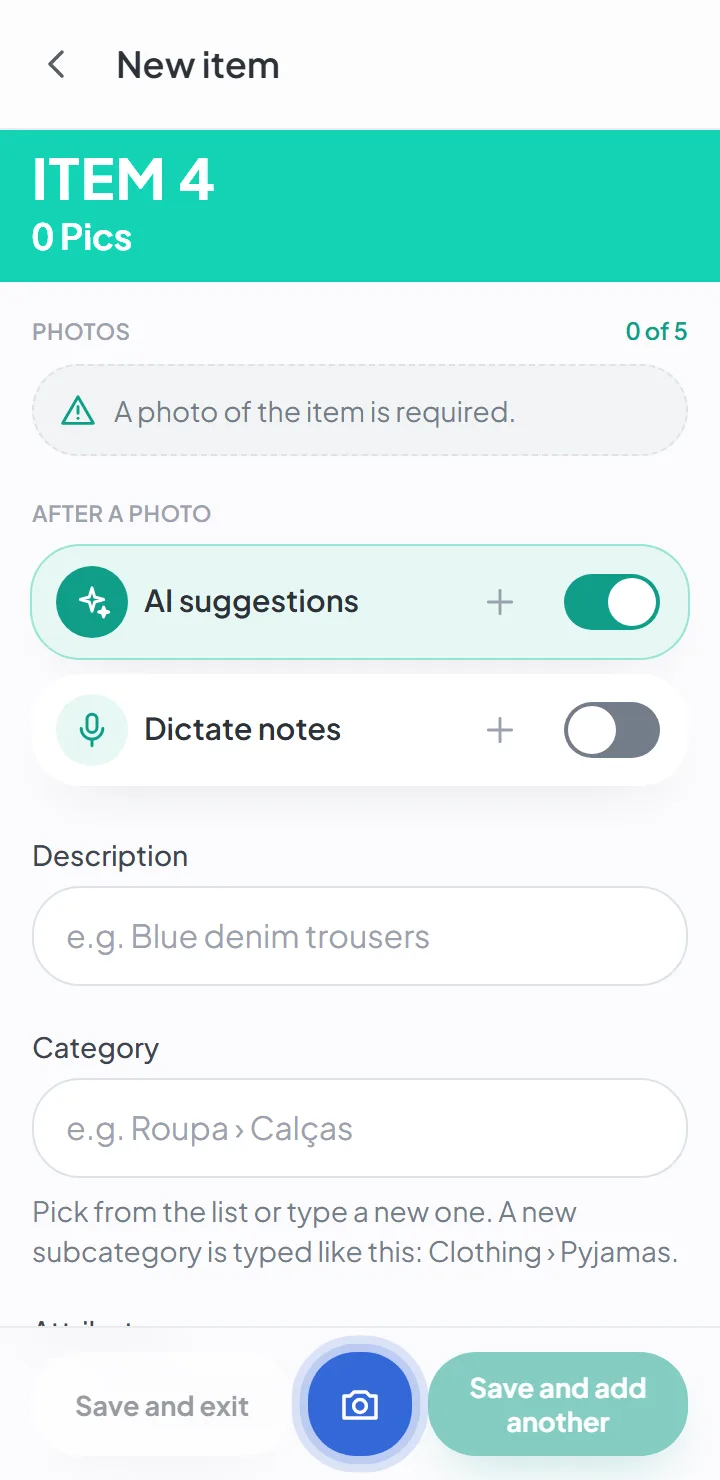
The photo is the only required field
In a household move, the hard part isn’t remembering you own a coffee maker. It’s knowing which box you put it in. So the app asks you for just one thing per item: a photo. Description, category, notes and owner are all fields you can fill in, but none of them holds you up.
In practice, packing a box comes down to this: set the item down, take the photo, save, set down the next one. The box’s contents list builds itself, with a photo of each thing. Across all your moving boxes, that adds up to your moving inventory list — made as you pack, instead of a checklist you have to type up later.
Packing with photos, without leaving the camera
The app’s camera was made for filling a whole box, not for one photo at a time:
- The viewfinder is square. Only what’s inside the red rectangle ends up in the photo, so what you see is what you save.
- Up to five photos per item. They show up as thumbnails at the top; tap one to see it full size or delete it.
- «Save and add another» saves the item and leaves the camera ready for the next one. The category you picked carries over from one item to the next — in a kitchen box, you don’t choose it twenty times.
- «Save and go to the box» saves and takes you back to the box, when you’re done.
When you want to say more
Some items are worth a few words. Without leaving the same screen, you can add:
- Description — the words you’ll search for it by: “aluminum stovetop coffee maker”.
- Category — from a list of sixteen (kitchen, clothing, electronics, tools, documents…), or one of your own.
- Attributes — the ones that make sense for the category: color, material, size, condition.
- Notes and owner — “the 6-cup one”, “it’s Emily’s”.
All of it goes into search. Type “aluminum” or “Emily” and the coffee maker shows up.
AI suggestions and dictated notes
Two switches on the new item screen, both optional and off to begin with:
- AI suggestions — the description, category, color and brand are suggested from the photos. The item stays flagged for review until you approve them.
- Dictate notes — hold down a button and say what you want to remember, up to ten seconds.
Both need a connection: the suggestions send the item’s photos to Google, and dictation sends Google the recording, to turn it into text. It’s all explained in AI suggestions.
Without a connection, too
Garages and storage units rarely get good signal. You can photograph and save items offline: they stay on your phone and upload when the connection comes back, without you having to do anything.
Photos you already have
If you photographed your things before installing the app, «Choose from device» lets you pick several images at once instead of taking them again.
Photos are shrunk on your phone before they’re uploaded, and the location and camera data are stripped at that point.
On iPhone, Android or a computer — and free to start
HomeItemFinder runs in the browser of any phone or computer — an iPhone (iOS), an Android phone or a laptop — and you can install it on your home screen to use it like an app. There are no versions in the app stores yet. You can start for free, with no credit card; the free plan’s limits are on the pricing page.
Good to know
- You can't create an item without a photo — it's the only field the app requires.
- There's no importing a list (Excel or CSV) and no way to duplicate an item.
- A barcode can be linked to an item, but it doesn't fill anything in on its own — the app has no product database.
- Each item can have five photos at most.
Questions about this
Do I have to type a name for every item?
No. The photo is the only required field. The description, category and notes are optional — and if you want, the AI suggests them from the photo.
Does it work without internet?
Yes. You can view, search and add items and photos with no connection; the app syncs when you’re back online.
AI suggestions and dictating notes need a connection.
Who can see my photos?
Only the people the owner invited to that move. Photos are kept in private storage, and location data is removed on your phone before the photo is uploaded.
If you turn on AI suggestions, the item’s photos are sent to Google to generate the suggestion. It’s optional, and it’s off by default.
Keep reading
Feature
The AI describes, you approve
Description, category, color and brand suggested from the photo. Optional, and always yours to review.
Feature
Forgot where you put it? Search.
Search by word and see the box and where it is. Forgives typos and works offline.
Feature
QR code labels, ready to print
A4 sheets with the box number and a QR code. Scanning the code opens the list of what's inside.
Start your move with everything in its place
Create an account, photograph your first box and see how quick it is.
Create a free accountStart using it now. It’s free.