Feature
The AI describes, you approve
From the photos, the app suggests each item's description, category, color and brand. It's optional, it's off by default, and every suggestion waits for your review.
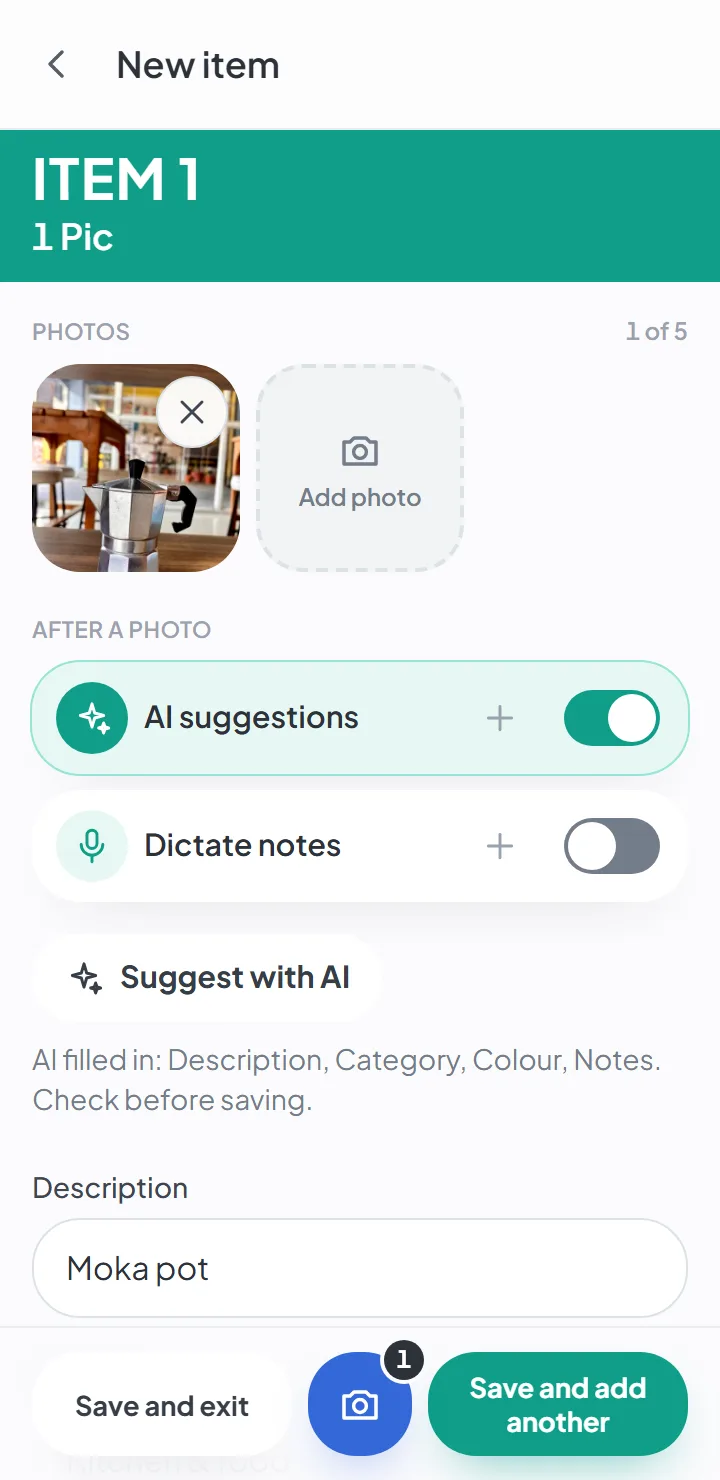
Watch the AI identify an item
Four moments with the same item, in the real app — from the photo to the filled-in fields.
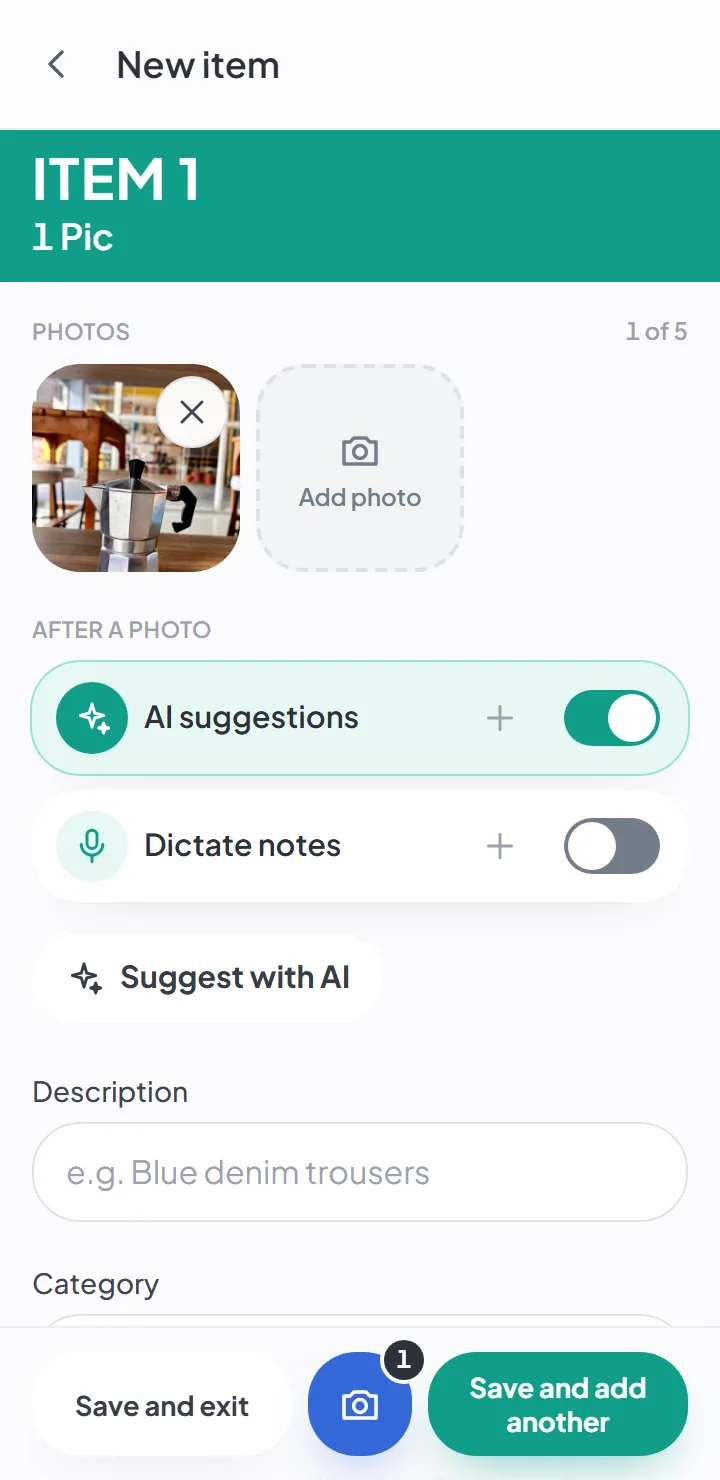
Photograph the item
With suggestions turned on, one photo is enough. All the fields are still empty.
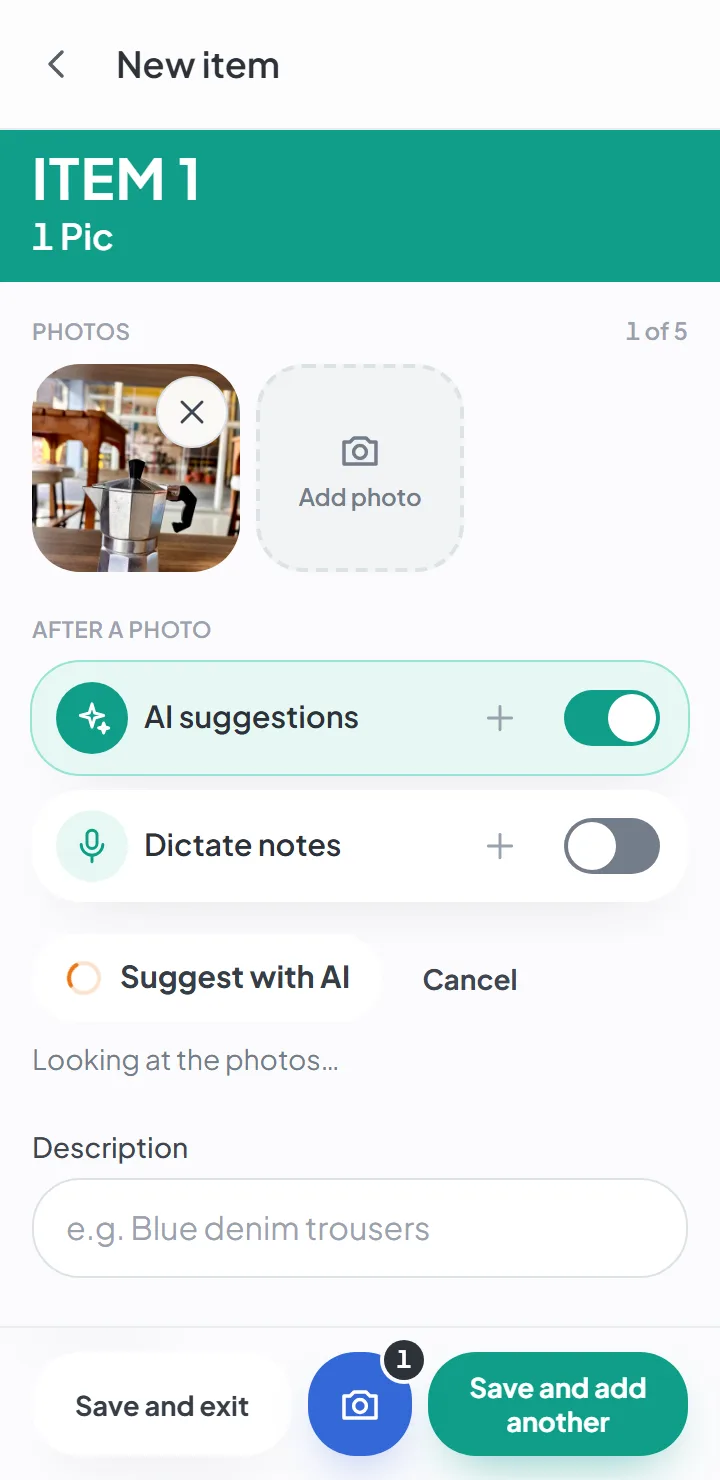
The AI looks at the photo
The orange spinner tells you it's working. It takes a few seconds and needs an internet connection.
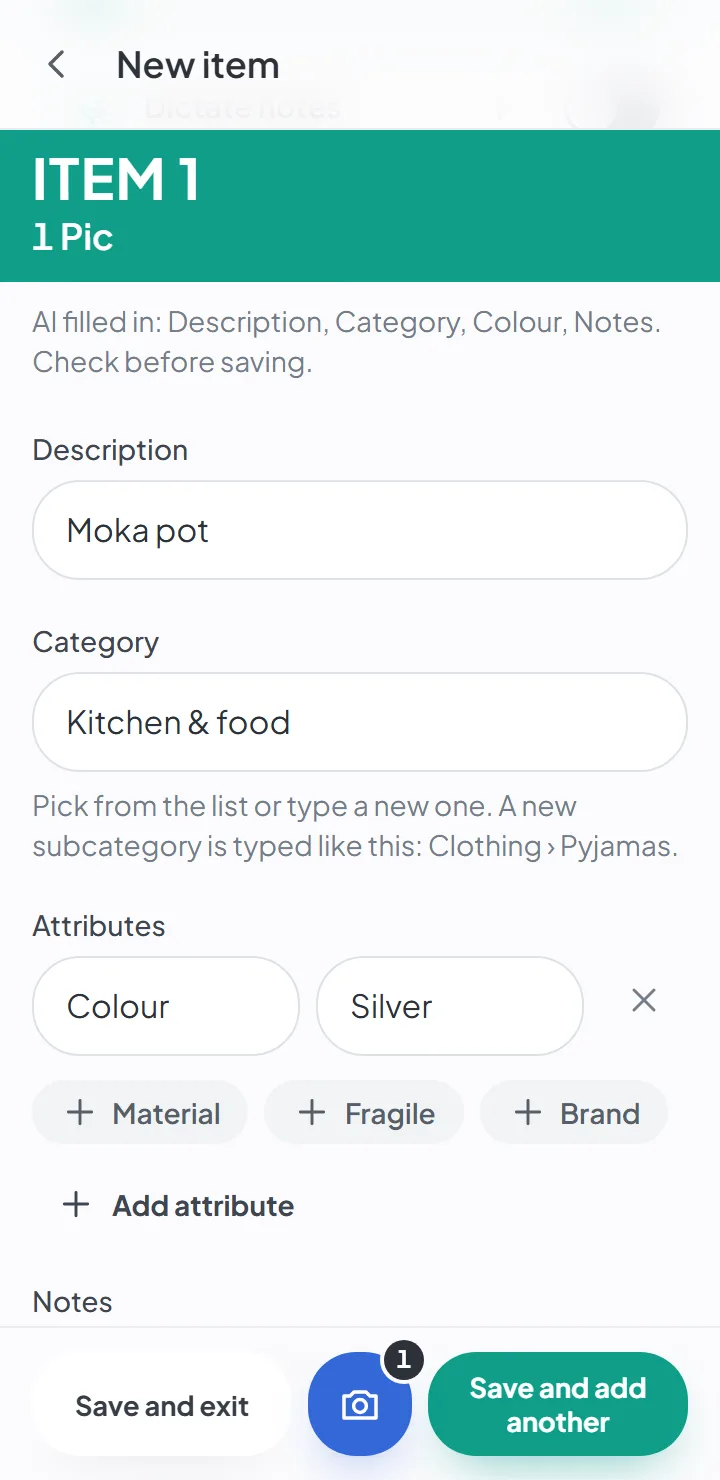
The fields show up filled in
The app tells you what the AI filled in, so you know what to check.
Check and save
Fix whatever you want before saving. You always have the last word.
How it works
Turn on suggestions
In Settings, under AI. They're off by default, and the choice belongs to this phone or computer — not to your account.
Photograph the item
As usual. The photo is what the AI looks at.
Tap «Suggest with AI»
In a few seconds you get the description, the category, the color and, when it can be read in the photo, the brand.
Review and save
The app tells you which fields it filled in. Fix whatever you want before saving.
What the AI fills in
From the photos — and from whatever you’ve already written in the item, if you wrote anything — the AI suggests:
- Description — the words you’ll search for the item by later: “moka pot”, not a long sentence.
- Category — one of the sixteen in the app’s catalog, or a subcategory.
- Color — from the app’s list of colors.
- Brand — only when it can be read on a label, a logo or the packaging.
- Category attributes — the material, the size, the condition, whatever shows in the photo.
- Notes — keywords for what’s worth remembering: the condition, what’s missing, what comes with it.
Nothing stays without your review
The AI only fills in empty fields. If you had already written something and it suggests something else, the suggestion shows up next to it, for you to accept or dismiss — one by one, or all at once.
And it always tells you what it did, in a line that starts «AI filled in:», names the fields and ends «Check before saving.»
Three ways to use it
The «Suggest with AI» button. Take the photo, tap the button, review, save. It’s the simplest way, and the one you see happening.
Automatic suggestions. A switch on the «New item» screen, and in the camera too: you save items with just their photos, and the AI fills them in when there’s a connection. Each one is marked «Review AI» until someone approves or edits it. It’s the way to fill a box quickly, without stopping at every item.
Review many at once. For items that already exist and have never been through the AI: from the move’s Summary, you ask for all of them to be reviewed, and the server keeps working even with the app closed. Then you approve field by field. It depends on the plan.
And dictated notes
Next to suggestions there’s another switch: Dictate notes. In the camera, you hold down a button and say what you want to remember about the item, for up to ten seconds — “it was Grandpa’s, the lid is missing”. The AI uses what you said to write the description and the notes; without AI, what you said goes straight into the notes.
Dictation needs a connection too: the recording goes to Google to be turned into text. The audio isn’t kept; the text of what you said stays with the item.
What is sent, and where
To generate a suggestion, the item’s photos go to Google — already made smaller on your phone and stripped of location data. With them goes whatever is written in the item and the app’s language. Not sent: your name, your email, the move’s name or the addresses. With dictation, the recording of what you said goes too, to be turned into text.
It’s all explained on the privacy and security page, and that’s why suggestions are off by default: anyone who wants them turns them on.
Good to know
- It needs an internet connection. Offline, the item is still saved; with automatic suggestions on, the AI fills it in when the connection comes back.
- The item's photos are sent to Google, which generates the suggestion. Your name, your email, the move's name and the addresses are not sent.
- The number of suggestions depends on the plan.
- The brand only appears if it's written and legible in the photo — the AI doesn't guess it from how the item looks.
- The AI doesn't estimate the items' value or their purchase date.
- It can get things wrong. That's why, with the button, nothing goes into the item until you approve it; with automatic suggestions, the item is marked «Review AI» until someone looks at it.
Questions about this
Who can see my photos?
Only the people the owner invited to that move. Photos are kept in private storage, and location data is removed on your phone before the photo is uploaded.
If you turn on AI suggestions, the item’s photos are sent to Google to generate the suggestion. It’s optional, and it’s off by default.
Do I have to type a name for every item?
No. The photo is the only required field. The description, category and notes are optional — and if you want, the AI suggests them from the photo.
Keep reading
Feature
Add items to your moving inventory with just the camera
Snap, save, next. The photo is the only required field.
Feature
The photos of your home are yours
No location data in the photos, private storage, and access by invitation only.
Feature
Forgot where you put it? Search.
Search by word and see the box and where it is. Forgives typos and works offline.
Start your move with everything in its place
Create an account, photograph your first box and see how quick it is.
Create a free accountStart using it now. It’s free.